

AWS's g6f and gr6f instance families are the cheapest way to run small inference workloads on the platform. They carve an NVIDIA L4 into fractional slices, so you can serve a quantized model or an embedding endpoint without paying for a whole GPU. There is just one problem: out of the box, Karpenter will never provision one for you. If your service requests nvidia.com/gpu, Karpenter looks at the g6f family, sees a GPU count of zero in the AWS instance metadata, and moves on to a bigger, more expensive instance that does report a GPU.
Rack version 3.25.1 fixes this with a new AWS-only rack parameter: karpenter_node_overlays_config. It creates Karpenter NodeOverlay resources on your rack, which let you patch the instance-type metadata Karpenter uses to make provisioning decisions. That means you can advertise the GPU that AWS forgets to report on g6f, and, as a bonus, adjust the prices Karpenter uses in its cost model so instance selection matches your actual contract economics. This post walks through how the mechanism works, every field and its validation rules, and two complete worked examples.
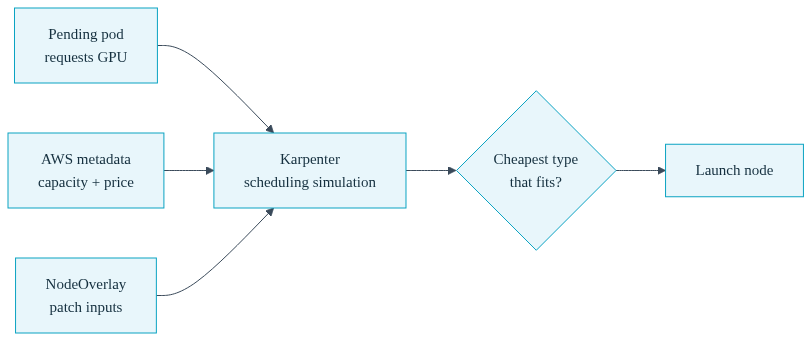
To understand why this parameter exists, it helps to be precise about what Karpenter does when it provisions a node. Karpenter does not launch an instance and then check whether your pod fits. It runs a scheduling simulation first: for every pending pod, it walks the catalog of instance types allowed by your NodePools, checks each type's advertised resources (CPU, memory, extended resources like nvidia.com/gpu) against the pod's requests, and then picks the cheapest instance type that satisfies everything, using per-type hourly prices from the AWS pricing data.
This simulation is only as good as its inputs. Two inputs matter here: the resource capacities each instance type advertises, and the price attached to each type. Both come from AWS metadata, and both can be wrong for your purposes. The fractional-GPU families g6f and gr6f are the canonical example of the first problem: AWS reports them with a GPU count of zero, so during the simulation they appear to have no nvidia.com/gpu capacity at all, and any pod requesting a GPU is deemed unschedulable on them. The instances physically have a GPU slice, and the NVIDIA device plugin will expose it once the node is running, but Karpenter never gets that far because the simulation rules the family out before launch.
The second problem is pricing. Karpenter's cost model uses on-demand list prices. If you have a Savings Plan, Reserved Instances, or an Enterprise Discount Program, your effective price for certain families can be 30 percent or more below list, which means Karpenter's "cheapest instance" decision can diverge from your actual cheapest instance.
A NodeOverlay is Karpenter's answer to both. It is a cluster-scoped resource (currently in the alpha karpenter.sh/v1alpha1 API) that matches a set of instance types via requirements and then patches the simulation inputs for those types: it can add extended resources to their advertised capacity, replace their hourly price outright, or apply a signed price adjustment. Convox manages these resources for you through the rack parameter. When karpenter_node_overlays_config is non-empty, the rack enables Karpenter's NodeOverlay feature gate and creates one NodeOverlay per entry in your config. Clear the parameter and the overlays are removed and the feature gate turns back off.
The parameter requires rack version 3.25.1 or later on AWS. If you are on an earlier version, update through each minor version in sequence to the latest 3.25.x patch:
$ convox rack update 3.25.1 -r rackNameSee CLI Rack Management for the step-wise update rules, and note one side effect of the 3.25.1 update itself: the Karpenter chart bundled with the rack moves to 1.13.1, which may trigger a one-time gradual replacement of Karpenter-managed nodes. That replacement is bounded by karpenter_disruption_budget_nodes, which defaults to 10 percent, so at most a tenth of your nodes churn at once.
Second prerequisite: karpenter_enabled=true must be set on the rack. This is worth stating plainly because the failure mode is silent. If Karpenter is not enabled, you can still set karpenter_node_overlays_config and the value will be stored, but it is inert. No NodeOverlay resources are created and nothing changes until Karpenter is turned on. If your rack uses static node groups today, overlays are not the tool for you.
The parameter value is a JSON array of overlay entries. Each entry supports the following fields:
| Field | Required | Rules |
|---|---|---|
| name | Yes | Lowercase alphanumeric with dashes, max 63 characters, unique across all entries. |
| requirements | Yes | Non-empty array of {key, operator, values} objects selecting which instance types the overlay applies to. Operators: In, NotIn, Exists, DoesNotExist, Gt, Lt. |
| capacity | No* | Map of extended resources to advertise, e.g. {"nvidia.com/gpu":"1"}. Standard resources (cpu, memory, ephemeral-storage, pods) are not allowed. |
| price | No* | Absolute hourly price for Karpenter's cost model. Mutually exclusive with priceAdjustment. |
| priceAdjustment | No* | Signed absolute (+5, -1.5) or signed percentage (-30%). Sign is always required. Percentage decreases cap at -100%. Mutually exclusive with price. |
| weight | No | Integer 1 to 10000. When multiple overlays match the same instance type, the higher weight wins the conflict. |
The asterisks mark the one cross-field rule beyond the price exclusivity: every entry must include at least one of capacity, price, or priceAdjustment. An overlay that matches instance types but patches nothing is a validation error, not a no-op.
A few of these rules deserve emphasis because they are the ones that will reject your config at apply time. The sign requirement on priceAdjustment is strict: 30% is invalid, -30% and +30% are valid. Percentage decreases are capped at -100 percent, which sets the effective price to zero; you cannot go below free. And price and priceAdjustment can never appear in the same entry, since one is an absolute replacement and the other is a delta against the base price. If you need both behaviors for different families, use two entries.
Weight matters as soon as your requirements overlap. Suppose you have one broad overlay applying a -30% adjustment to everything in the g family via an Exists requirement on a label, and a second overlay advertising nvidia.com/gpu on g6f specifically. If both match g6f.large, Karpenter needs to know which patch takes precedence where they conflict, and the higher weight wins. Give your narrow, specific overlays a high weight (the canonical example uses 100) and leave broad catch-alls low.
Here is the full adoption path for the primary use case: getting Karpenter to provision g6f and gr6f fractional GPU instances for nvidia.com/gpu requests.
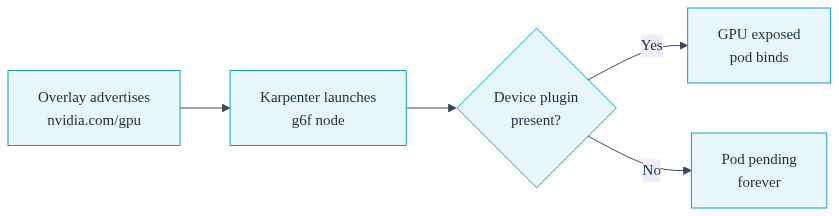
First, confirm the NVIDIA device plugin is enabled on your rack. This is the piece that makes the advertised GPU real. The overlay only affects Karpenter's scheduling simulation; it tells Karpenter "this instance type can satisfy a GPU request" so the launch happens, but once the node joins the cluster, it is the device plugin that actually exposes nvidia.com/gpu to the kubelet so your pod can bind it. Without the plugin, Karpenter launches the node and your pod sits pending on it forever.
$ convox rack params set nvidia_device_plugin_enable=true -r rackNameNext, write the overlay config. Save this as overlays.json:
[
  {
    "name": "g6f-fractional-gpu",
    "weight": 100,
    "requirements": [
      {
        "key": "node.kubernetes.io/instance-type",
        "operator": "In",
        "values": ["g6f.large", "g6f.xlarge", "g6f.2xlarge", "g6f.4xlarge", "gr6f.4xlarge"]
      }
    ],
    "capacity": {
      "nvidia.com/gpu": "1"
    }
  }
]
This single entry matches the five fractional-GPU sizes by instance type and advertises one nvidia.com/gpu on each. The weight of 100 ensures it wins if you later add broader overlays that also touch these types. Apply it by passing the file path directly; the parameter also accepts a raw JSON string or base64-encoded JSON if you are wiring this into automation, but the file path is the most readable option for hand management:
$ convox rack params set karpenter_node_overlays_config=/path/to/overlays.json -r rackName
Updating parameters... OK
Two things happen behind the scenes. Because this is the first non-empty value for the parameter, the rack enables the NodeOverlay feature gate, which restarts the Karpenter controller. Expect a brief pause in provisioning activity while the controller comes back; in-flight nodes are unaffected. Then the rack creates the NodeOverlay resource, and Karpenter incorporates it into its instance-type view. Overlay changes take minutes to affect provisioning decisions, so do not expect an instant flip.
Also make sure your Karpenter NodePool actually allows the g6f family. An overlay can only patch instance types that are in the candidate set; if your NodePool restricts instance families and g6f is not among them, the overlay matches nothing.
Now the service side. In convox.yml, request a GPU through the scale.gpu block as documented in the scaling reference:
services:
  inference:
    build: .
    port: 8000
    scale:
      count: 1
      cpu: 1000
      memory: 4096
      gpu:
        count: 1
Deploy with convox deploy -a myapp -r rackName. When the pod requests nvidia.com/gpu: 1, Karpenter's simulation now sees the g6f sizes as valid candidates, and because they are dramatically cheaper than full-GPU alternatives like g6 or g5, the cost model will prefer them for workloads that fit. You can verify what happened with convox rack logs -r rackName to watch the provisioning decision, and convox deploy-debug if the pod stays pending. A pending pod on a successfully launched g6f node almost always means the device plugin is missing or unhealthy, since that is the one piece the overlay cannot fake.
The pricing fields solve a subtler problem. Karpenter always optimizes for cost, but it optimizes against list prices. If your organization has a Compute Savings Plan that discounts the m and c families by 30 percent, Karpenter does not know that, and it may pick an r-family instance that looks marginally cheaper at list price but is meaningfully more expensive under your contract. A priceAdjustment overlay closes that gap:

[
  {
    "name": "savings-plan-discount",
    "weight": 10,
    "requirements": [
      {
        "key": "karpenter.k8s.aws/instance-family",
        "operator": "In",
        "values": ["m6i", "m7i", "c6i", "c7i"]
      }
    ],
    "priceAdjustment": "-30%"
  },
  {
    "name": "avoid-flaky-family",
    "weight": 20,
    "requirements": [
      {
        "key": "karpenter.k8s.aws/instance-family",
        "operator": "In",
        "values": ["t3a"]
      }
    ],
    "priceAdjustment": "+50%"
  }
]
The first entry tells Karpenter's cost model that the covered families cost 30 percent less than list, which mirrors the Savings Plan and steers instance selection toward the capacity you have already committed to pay for. The second entry does the opposite: a positive adjustment inflates a family's apparent price so Karpenter deprioritizes it without banning it outright. This is a useful soft lever when a family has given you operational trouble, whether that is noisy-neighbor burstable behavior or a driver incompatibility, but you do not want the hard cliff of removing it from the NodePool entirely. If every other option is exhausted, Karpenter can still fall back to it.
Both entries use signed percentages, and both signs are mandatory. If you know an exact contracted rate rather than a percentage discount, use price instead with the absolute hourly figure, remembering that price and priceAdjustment cannot coexist in one entry. One important boundary: these adjustments change Karpenter's provisioning model only. Convox cost tracking uses its own price tables and is unaffected by overlays. If you want cost tracking's reported spend to reflect contract pricing too, that is a separate knob, the pricingAdjustment field in the convox.yml budget block. The two systems do not read each other's configuration, so aligning them is on you.
A handful of gotchas are worth internalizing before you rely on overlays in production.
Capacity is a simulation input, not a node mutation. Advertising nvidia.com/gpu in an overlay does not install anything on the node or create the resource in the kubelet. It changes what Karpenter believes when deciding whether to launch. The device plugin, drivers, and everything else that makes the resource real still have to exist. If you advertise a resource that nothing on the node will ever expose, you get launched nodes with permanently pending pods, and Karpenter will keep trying because from its perspective the instance type is a valid match.
Changes are not instant. Budget minutes, not seconds, between applying an overlay change and seeing different provisioning behavior. The first overlay is the slowest because of the feature-gate flip and controller restart. Subsequent edits to an already-enabled config avoid the restart but still take time to propagate into decisions.
The upstream API is alpha. NodeOverlay lives at karpenter.sh/v1alpha1, and alpha APIs carry no stability guarantee across versions. The practical consequence is that every Karpenter chart upgrade bundled in a rack update is a moment to revalidate your overlay config against the new chart's behavior. The 3.25.1 release itself is a live example: it moves the Karpenter chart to 1.13.1, and future rack releases will keep moving it. Keep your overlays.json in version control next to your other rack configuration, and re-test fractional-GPU provisioning and price-driven selection after each rack update that touches Karpenter. Check the release notes for chart version bumps.
The parameter is inert without Karpenter. Repeating this because it is the easiest mistake to make: with karpenter_enabled=false, the value is stored and validated but no NodeOverlay resources exist. If overlays seem to do nothing, check Karpenter first.
Clearing is a one-liner. To remove all overlays and disable the feature gate, set the parameter to an empty value:
$ convox rack params set karpenter_node_overlays_config= -r rackNameFinally, when should you not use this? If a fixed pool of GPU nodes serves you fine, an EKS managed node group via additional_node_groups_config is simpler and has no alpha-API exposure. If you only need Karpenter to prefer certain families, NodePool requirements are the first tool to reach for; overlays are for the cases NodePools cannot express, namely wrong capacity metadata and wrong prices. And if your goal is accurate cost reporting rather than provisioning behavior, overlays are the wrong layer entirely; use cost tracking's pricing adjustment instead.
The karpenter_node_overlays_config parameter is a small amount of JSON with outsized leverage. One overlay entry makes the cheapest GPU instances on AWS visible to your nvidia.com/gpu workloads, and a couple more align Karpenter's cost-optimized selection with the prices you actually pay. The rules to remember: every entry needs a unique name, non-empty requirements, and at least one of capacity, price, or priceAdjustment; adjustments always carry a sign and percentage decreases stop at -100%; price and priceAdjustment never share an entry; and higher weight wins on overlap.
The full field reference and input format details are in the karpenter_node_overlays_config parameter documentation, and the 3.25.1 changes, including the Karpenter 1.13.1 chart bump, are covered in the release notes.
Questions about overlay behavior on your rack, or hitting a validation error you cannot decode? Reach us at support@convox.com.


