
Bottlerocket is a great fit for your web services. It is a minimal, container-optimized OS with a read-only root filesystem and a small attack surface, which is exactly what you want under a security-sensitive tier. But if you are also running GPU inference or model-serving workloads on the same rack, you have a problem: those workloads cannot run on the Bottlerocket NVIDIA variant yet. So do you pick one OS and compromise, or is there a way to run both?
The good news is that on a Convox AWS rack you do not have to choose. You can run your hardened web tier on Bottlerocket and keep your GPU tier on Amazon Linux 2023, all on one rack, with each app landing on the right nodes automatically. This post walks through exactly how the OS setting behaves, why the GPU constraint exists, and the step by step commands to build a mixed setup.
On a Convox AWS rack, the karpenter_node_os rack parameter sets the operating system for the Karpenter-managed workload NodePool. It accepts two values: al2023 (Amazon Linux 2023, the default) and bottlerocket.
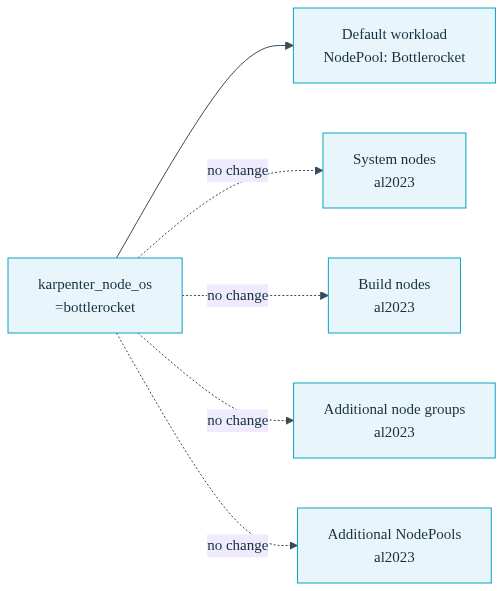
The important thing to understand is the scope of this setting. It is narrower than most people expect. When you set karpenter_node_os=bottlerocket, you are changing the OS for the default Karpenter workload NodePool and nothing else. Everything else on the rack stays on al2023.
Here is the breakdown of what changes and what does not when you flip the parameter to Bottlerocket:
| Node type | OS when karpenter_node_os=bottlerocket |
|---|---|
| Default Karpenter workload NodePool | Bottlerocket |
| System nodes | al2023 |
| Build nodes | al2023 |
| Additional node groups | al2023 |
| Additional Karpenter NodePools | al2023 |
This is the key insight that makes a mixed strategy possible. Because additional node groups always stay on al2023, you have a clean lane for the workloads that need Amazon Linux, while your default Karpenter pool serves everything else on Bottlerocket. You are not fighting the platform. The separation is built into how the OS parameter is scoped.
The reason you cannot simply put everything on Bottlerocket comes down to the NVIDIA driver story. Bottlerocket ships a dedicated NVIDIA variant for GPU nodes, but that variant is not yet supported on Convox racks. Until it is, GPU and model-serving workloads must run on al2023, where the NVIDIA device plugin and the full driver toolchain are known to work.
If you are running inference servers like vLLM, SGLang, TGI, or any workload that declares a scale.gpu block in its convox.yml, those pods need to land on GPU nodes running Amazon Linux. This is not a preference, it is a hard requirement for now. Putting a GPU pod on a node whose OS cannot expose the GPU device would leave the pod pending or failing to access the accelerator.
So the mental model is simple. Bottlerocket is where you want your hardened, CPU-bound web and API services. al2023 is where your GPU inference tier lives. The task is to give each tier its own set of nodes and make sure every app schedules onto the right one. That is exactly what the rest of this post covers.
A karpenter mixed node OS setup on Convox rests on two mechanisms working together.
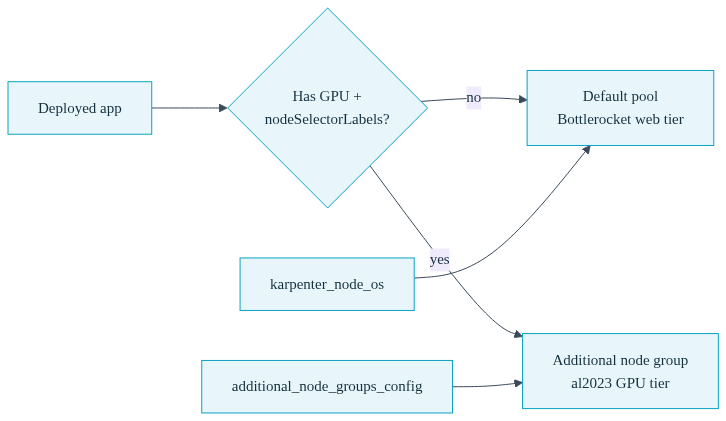
The first is karpenter_node_os=bottlerocket, which puts your default workload NodePool on Bottlerocket. Any app that does not explicitly target other nodes will schedule here.
The second is additional_node_groups_config, which lets you define one or more dedicated node groups with their own instance types, sizing, and labels. Because additional node groups stay on al2023, this is where your GPU tier goes. You label the node group, then target your GPU apps to that label with nodeSelectorLabels in their manifest.
Between these two, you get a rack where the default lane is hardened Bottlerocket and a dedicated al2023 lane exists specifically for the workloads that require it. Let us build it.
Start by setting the OS for the default Karpenter workload NodePool. This is a rack parameter change, so it triggers an infrastructure update. Run it during a low-traffic window and test on a staging rack first if you can.
$ convox rack params set karpenter_node_os=bottlerocket -r myrack
Updating parameters... OK
After the update completes, your default workload NodePool provisions Bottlerocket nodes. Any app scheduled without a node selector will land on these hardened nodes. Your system nodes and build nodes continue running al2023, which is expected and correct.
If you ever need to reverse this, set the parameter back to al2023 and let the rack update. For a fuller picture of how rack parameter updates behave, see CLI Rack Management.
Now define a separate node group for your GPU tier using additional_node_groups_config. This parameter takes a JSON array where each object describes a node group: its instance type, sizing bounds, and a label you will use to target apps to it.
Here is a node group configured for GPU inference. It uses a g4dn.xlarge instance type, a label of gpu-inference, and marks the group as dedicated so general workloads do not spill onto it.
$ convox rack params set additional_node_groups_config='[{"id":1,"type":"g4dn.xlarge","min_size":1,"max_size":3,"label":"gpu-inference","dedicated":true}]' -r myrack
Updating parameters... OK
A few things worth calling out in that config. The id uniquely identifies the node group. The min_size and max_size control autoscaling bounds for the group. The label is what you will reference from your app manifest. And dedicated: true keeps other workloads off these nodes, which matters when you are paying for GPU instances and do not want a CPU-bound web pod squatting on one.
Because this is an additional node group, it comes up on al2023 regardless of your karpenter_node_os setting. That is precisely the behavior you want: your GPU nodes get Amazon Linux and the full NVIDIA toolchain, while your default pool stays on Bottlerocket.
To actually schedule GPU pods, you will also want the NVIDIA device plugin enabled on the rack. If you have not done that yet, set it before deploying GPU apps:
$ convox rack params set nvidia_device_plugin_enable=true -r myrack
Updating parameters... OKWith the two lanes in place, the last piece is telling each app where to run. Convox uses nodeSelectorLabels in the service definition to pin a service to nodes carrying a specific label. Apps without a selector fall through to the default Bottlerocket pool.
Your security-sensitive web tier needs no special handling. It just deploys and lands on Bottlerocket because that is the default workload OS now. Here is a straightforward web service manifest:
services:
  web:
    build: .
    port: 3000
    health: /health
    scale:
      count: 2-6
      cpu: 250
      memory: 512
No node selector, no fuss. Those pods get the hardened OS automatically.
Your GPU inference tier, on the other hand, needs to declare both its GPU requirement and the node selector that pins it to the al2023 node group you created. Note how the nodeSelectorLabels value matches the label from the node group config:
services:
  inference:
    image: nvcr.io/nim/meta/llama-3.1-8b-instruct:latest
    port: 8000
    nodeSelectorLabels:
      convox.io/label: gpu-inference
    scale:
      count: 1
      gpu:
        count: 1
        vendor: nvidia
The convox.io/label: gpu-inference selector routes this service to the dedicated GPU node group, which runs al2023 and can expose the NVIDIA device. The scale.gpu block reserves one GPU per pod. For more on GPU scheduling options and workload placement, see the Workload Placement guide and the Service reference.
Deploy each app as normal with convox deploy. The web app spreads across Bottlerocket nodes, the inference app lands on the al2023 GPU group, and neither one interferes with the other.
Let us tie the whole thing together. Say you run a rack called prod that hosts a customer-facing web application and a self-hosted LLM inference service. You want the web tier on hardened Bottlerocket nodes and the inference tier on al2023 GPU nodes.
First, the rack-level setup. Three parameter commands establish the two lanes and enable GPU scheduling:
$ convox rack params set karpenter_node_os=bottlerocket -r prod
Updating parameters... OK

$ convox rack params set additional_node_groups_config='[{"id":1,"type":"g4dn.xlarge","min_size":1,"max_size":3,"label":"gpu-inference","dedicated":true}]' -r prod
Updating parameters... OK

$ convox rack params set nvidia_device_plugin_enable=true -r prod
Updating parameters... OK
Then a single convox.yml describes both services in the same app, each targeting its own lane:
environment:
  - RAILS_ENV=production
services:
  web:
    build: .
    port: 3000
    health: /health
    scale:
      count: 2-6
      cpu: 250
      memory: 512
  inference:
    image: nvcr.io/nim/meta/llama-3.1-8b-instruct:latest
    internal: true
    port: 8000
    nodeSelectorLabels:
      convox.io/label: gpu-inference
    scale:
      count: 1
      gpu:
        count: 1
        vendor: nvidia
Deploy it:
$ convox deploy -a myapp -r prodAfter the rollout, you can confirm where each service landed with convox ps and check the underlying nodes if you have direct Kubernetes access configured. The web pods run on Bottlerocket, and the inference pods run on the al2023 GPU node group. The inference service is marked internal: true so it is reachable only from within the rack, which is a sensible default for a model endpoint that your web tier calls but that you do not want exposed to the internet.
That is the entire mixed setup. Two rack parameters plus a node selector, and you have a bottlerocket vs al2023 split that puts hardened nodes under your web tier and compatible nodes under your GPU tier.

If you were assembling this on raw Kubernetes, you would be hand-authoring Karpenter NodePools and EC2NodeClasses, wiring AMI selectors per OS, managing the NVIDIA device plugin DaemonSet, and writing taints, tolerations, and node affinity blocks across every workload manifest. Getting the Bottlerocket AMI family and the al2023 GPU AMI both correct, and keeping them in sync as versions move, is a standing maintenance burden.
Here is the same node group strategy expressed at both layers:
| Concern | Raw Kubernetes | Convox |
|---|---|---|
| Default node OS | Author NodePool + EC2NodeClass with a Bottlerocket AMI family and userData | karpenter_node_os=bottlerocket |
| Dedicated GPU group | Define a managed node group, pick the GPU AMI, set labels and taints by hand | One additional_node_groups_config entry |
| GPU driver plumbing | Install and maintain the NVIDIA device plugin DaemonSet yourself | nvidia_device_plugin_enable=true |
| Targeting an app | nodeSelector, tolerations, and affinity blocks per manifest | nodeSelectorLabels in convox.yml |
Convox keeps the underlying Karpenter, AMI selection, and device plugin machinery managed for you, so your job shrinks to a handful of parameters and one label per specialized service. You keep the AWS account and the infrastructure in your own environment, and you skip the platform-team-sized effort of gluing it all together and keeping it running.
Rack parameter changes trigger infrastructure updates, so treat the initial setup like any other production change: test on a staging rack, apply during a low-traffic window, and watch the update with convox rack logs. See CLI Rack Management for the details on how updates roll out.
Keep GPU node groups dedicated. Marking the group dedicated: true and using a matching selector on your GPU services keeps costly accelerator instances reserved for the workloads that need them, rather than letting a stray CPU pod occupy one.
And when the Bottlerocket NVIDIA variant becomes supported on Convox, you will be able to revisit whether to consolidate your GPU tier onto Bottlerocket too. Until then, the al2023 node group approach is the clean, supported path, and the setup above is built to make that eventual migration a small change rather than a rewrite.
Running a mix of hardened web services and GPU inference on one rack does not have to mean choosing between security and compatibility. With karpenter_node_os and additional_node_groups_config, you put Bottlerocket where it helps and al2023 where it is required, all in your own AWS account.
Create a free account and deploy your first Rack in minutes. Start with the Getting Started Guide, then dig into Workload Placement to plan your node group strategy.
Have a compliance or GPU workload you want to talk through? Reach out to our team.


